Want a transparent phone look? Learn how to create a transparent screen effect on Android using camera-based apps, live wallpapers, and simple customization tips.
Have you ever wanted to make your Android phone look transparent, as if you could see right through its screen? This creative effect can give your smartphone a unique appearance and make your home screen look completely different from the usual wallpapers.
The good news is that you can create a transparent-style screen effect on many Android phones without buying a new device. Some apps use your phone’s camera to show a live view of the surroundings behind the phone, while others create a similar appearance using transparent wallpapers and visual effects.
In this guide, you will learn how the transparent phone effect works, how to set it up, and what to know before installing a customization app.
Important: These methods create a visual effect on your display. They do not make the physical screen or phone body transparent.
What Is a Transparent Phone Screen Effect?
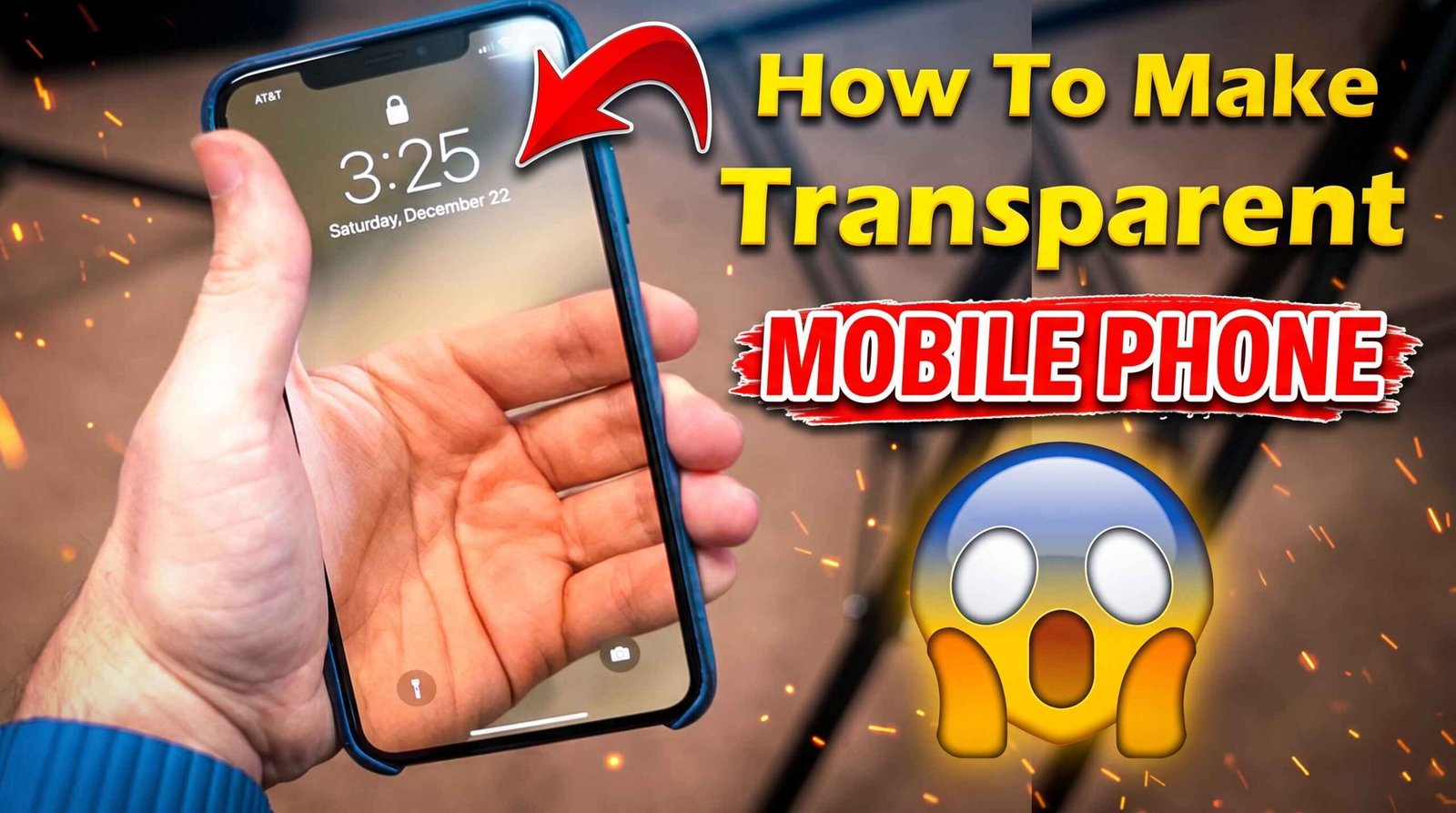
A transparent phone effect makes your Android home screen appear as though you can see through the display.
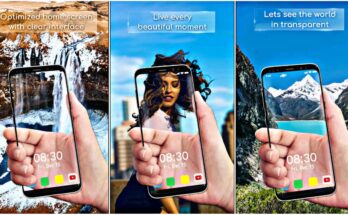
Depending on the method, the effect may use a live camera preview or a specially designed wallpaper. Camera-based apps can display the scene captured by your phone’s camera behind app icons and other interface elements.
For example, if your phone is pointed toward a desk, a camera-based effect may show that desk as the background of your home screen.
Wallpaper-based effects work differently. They use an image designed to resemble a transparent screen, creating an interesting look without continuously displaying a live camera feed.
How to Make Your Android Phone Look Transparent
There are two common ways to create this effect. Choose the one that best suits your phone and preferences.
Method 1: Use a Camera-Based Transparent Screen App
Some Android customization apps use the camera to create the appearance of a see-through screen.
Step 1: Open the Google Play Store
Open the Play Store on your Android phone and search for terms such as “transparent screen,” “transparent screen wallpaper,” or “camera live wallpaper.”
App names, availability, and features can change, so review the current listings before choosing one.
Step 2: Check the App Details
Before installing an app, read its description and recent reviews. Check whether it supports your Android version and whether it uses the camera to create the effect.
Avoid apps that promise to physically transform your display or make claims that sound impossible.
Step 3: Install and Open the App
If you decide the app is trustworthy, install it and follow its setup instructions.
Some apps offer a preview before you apply the effect. Use this option if it is available.
Step 4: Review Camera Permissions
A camera-based effect needs camera access to show a live view. Grant permission only if the feature requires it and you are comfortable with the app’s privacy practices.
Check the developer’s privacy policy to understand whether camera data is stored, processed, or shared.
Step 5: Apply the Transparent Effect
Depending on the app, you may need to tap a button such as Start, Set Wallpaper, or Apply Effect.
Follow the on-screen instructions. The finished result may appear on your home screen, lock screen, or both, depending on what your device and the app support.
Method 2: Use a Transparent-Style Wallpaper
If you do not want an app continuously using your camera, a transparent-style wallpaper is a simpler alternative.
Step 1: Find a Suitable Wallpaper
Search for transparent phone wallpapers or see-through screen-effect backgrounds. Choose an image that matches your screen resolution.
Step 2: Download the Image from a Trusted Source
Use a reputable wallpaper source and avoid downloading suspicious files or installing unknown applications just to access an image.
Step 3: Set the Wallpaper
Open the image in your Gallery or Photos app. Tap the menu and choose the option to set it as your wallpaper.
Select the home screen or another supported location, depending on your preference.
Step 4: Adjust Your Icons
Keep your home screen simple so the wallpaper remains visible. You can move unnecessary icons to another page or use a clean launcher layout if your phone supports it.
This method does not show a live view of your surroundings, but it can create an attractive transparent-inspired design without continuous camera use.
Does the Transparent Screen Trick Work on Every Android Phone?
Not every app works on every device. Compatibility can depend on your Android version, manufacturer, screen size, and the app’s technical requirements.
Some apps may only support the home screen, while others may not work correctly with certain launchers. A live camera background can also behave differently across devices.
Before installing an app, check its compatibility details and reviews from people using similar phones.
Does a Transparent Screen App Drain Battery?
It can, especially if it keeps the camera active or continuously updates a live background.
Battery consumption varies depending on the app, phone hardware, display brightness, and how often the effect runs.
If you notice your battery draining faster, try these steps:
- Use a static wallpaper instead of a live camera effect.
- Turn off the effect when you do not need it.
- Check the app’s battery usage in Android settings.
- Remove the app if it consumes excessive power.
- Avoid leaving the camera-based effect running unnecessarily.
A static wallpaper is generally the simpler choice if battery life is your main priority.
Is It Safe to Use a Transparent Screen App?
The safety of this effect depends on the app you choose and the permissions it requests.
Camera-based apps need access to your camera to display live footage. However, a wallpaper effect should not require unrelated access to your contacts, messages, or other sensitive information.
Before installing an app:
- Check the developer’s name and reputation.
- Read recent reviews.
- Review the requested permissions.
- Read the privacy policy.
- Avoid apps that request unnecessary access.
- Uninstall the app if it behaves suspiciously.
Remember that a camera preview can show private surroundings. Be mindful of where your phone is pointing when the effect is active.
Why Is My Transparent Wallpaper Not Working?
If the effect does not appear, try these troubleshooting steps.
Check Camera Permission
If you are using a camera-based app, open Android Settings, find the app, and check its camera permission.
Only enable camera access if you trust the app and want to use the live effect.
Restart the App
Close the app and open it again. Some effects may need to be applied again after restarting the phone.
Check Wallpaper Settings
Make sure you selected the correct option when applying the wallpaper. Some apps create a live wallpaper that must be enabled through Android’s wallpaper settings.
Check Compatibility
Update the app if an official update is available. If the feature still does not work, your device or launcher may not support it.
Try a Static Wallpaper
If the live effect keeps crashing or using too much battery, switch to a transparent-style image instead.
Can You Make Your Phone Physically Transparent?
No. A regular Android app cannot make the actual display, battery, circuit board, or phone body transparent.
These apps create an illusion using a camera preview, wallpaper, or other visual effects. The physical hardware remains unchanged.
Be careful with videos or advertisements claiming that a hidden setting can make the actual phone transparent. Such effects are usually demonstrations, edited footage, or visual tricks.
Final Words
Making your Android phone look transparent is a fun way to customize your home screen in 2026. You can try a camera-based transparent screen app for a live visual effect or use a transparent-style wallpaper for a simpler setup.
Choose an app carefully, review its permissions, and keep an eye on battery usage if it relies on your camera. Most importantly, remember that this is a display effect rather than a way to make your actual phone transparent.
Have you tried a transparent screen effect on your Android phone? Share your experience in the comments and tell us which phone you use.
1. Is the transparent screen effect free?
Some wallpaper and customization apps are free, while others may include advertisements, subscriptions, or in-app purchases. Check the current listing before installing anything.
2. Do I need to root my Android phone?
Usually, no. Standard wallpaper and launcher customization normally works without rooting your device.
3. Will this effect work on Samsung, Xiaomi, Vivo, and Oppo phones?
It may work on many Android devices, but compatibility depends on the specific phone, Android version, launcher, and app. Check the app’s supported-device information.
4. Can I use the transparent effect on my lock screen?
Some apps support lock-screen wallpapers, but others only change the home screen. Availability also depends on your Android device and software version.
5. Does the app let me see through walls or objects?
No. A camera-based app only shows what the camera can capture. It cannot see through solid objects or reveal anything hidden behind walls.